
Primafact Bundle Binder Setting
The Bundle Binder is a new type of Binder designed for sharing documents with recipients outside your firm, and particularly to support efficient creation and export of court submissions.
Bundle Binders include a number of features designed to facilitate e-brief production, including:
-
Title Aliases, allowing you to assign more than one title to the same document, so the document can be renamed instantly depending on where the document will be submitted (e.g. Firm Document Standards and CaseLines titles can be applied to the same document)
-
Copy binder to Tabbed PDF – This feature is available in Primafact 5, but updated for more streamlined application.
Create a Bundle Binder
-
Right-click your Case Binder
-
Select New > Bundle Binder
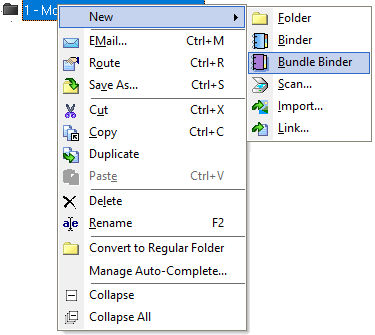
- Name your binder, and add Tabs, Sections and Documents as applicable.
Convert a Regular Binder to a Bundle Binder
Converting a regular binder to a bundle binder makes it easier to access bundle binder tools, including exporting an entire binder as a tabbed PDF. All regular binder features are available in the bundle binder, which is displayed as a purple binder icon.
-
Right-Click the blue binder that you wish to convert to a bundle binder.
- Select Make Bundle Binder
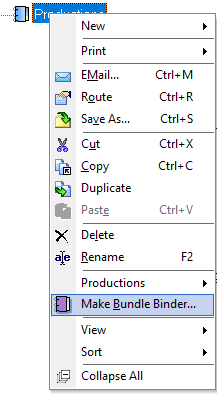
Your binder icon color will change to purple and bundle binder tools will be activated. (You will see a mauve ribbon at the top of the binder with quick access to bundle binder buttons.)
You may need to close and re-open Primafact to see the activated bundle binder.
Export a Bundle Binder as a Tabbed PDF
Primafact 6 has updated the PDF export tool to support easy exchange of organized, multi-document tabbed briefs.
An exported bundle binder allows you to efficiently export a structured
document set in a single tabbed PDF, including:
-
Bookmarks to each document
-
Binder Page Numbering
-
Alternate document Titles
-
Highlights (if desired)
-
Primafact links to other documents in the bundle
-
Web links
-
Bates IDs where applicable
-
Annotations (if desired)
Large files can be easily uploaded to CaseLines, online portals, document exchange tools and other locations outside Primafact.
To export your bundle binder as a PDF:
-
Click the Binder-to-PDF button at the top of the Bundle Binder
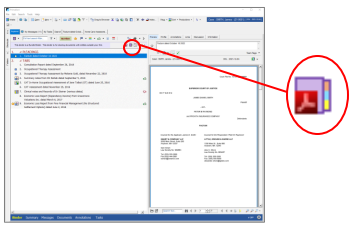
- The Saving from Primafact window will appear:
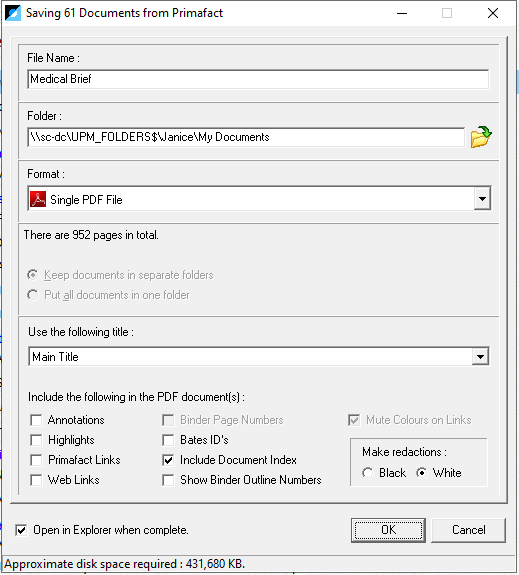
- Select the desired output and click OK when complete.
If you check the Open in Explorer when complete checkbox option (recommended) you will be directed to the completed PDF in Windows Explorer.